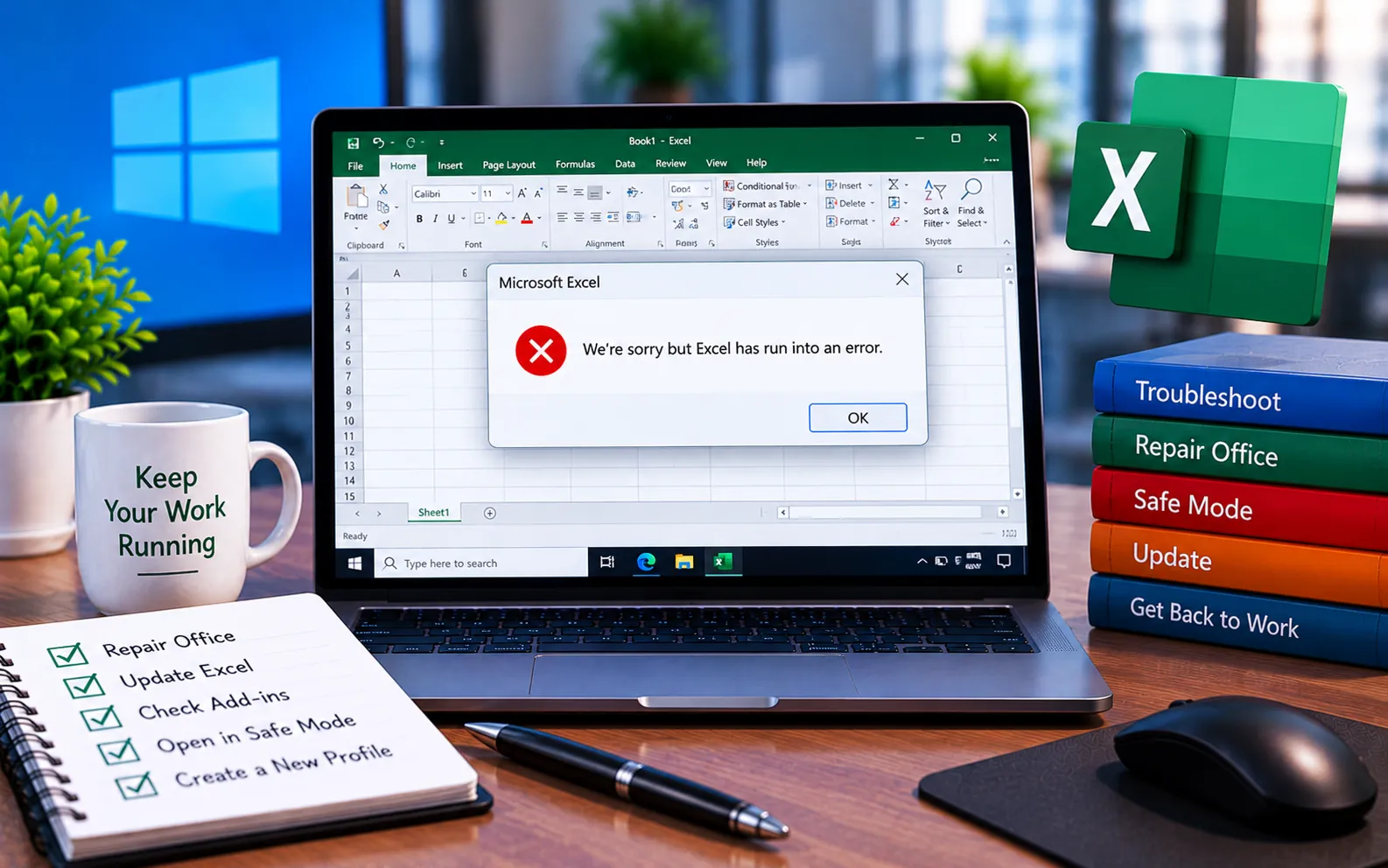
Encountering errors while using Office applications can be frustrating, and one common issue users face is the “We’re sorry, but Excel has run into an error that is preventing it from working correctly” message. This typically indicates Excel has encountered a problem or crash, and can happen for several reasons.
This guide explains the possible causes and the troubleshooting steps to resolve it.
Possible Causes for “Excel Has Run Into an Error”
Corrupted Excel installation — make sure Excel is up to date, and consider repairing or reinstalling it to address potential corruption.
Add-in conflict — disable third-party Excel add-ins and restart the app to see if the error persists, then re-enable them one at a time to identify the culprit.
Outdated Office version — update Office to the latest version, since outdated software can have compatibility issues.
Insufficient system resources — check whether your computer has enough available memory and disk space, and close unnecessary applications to free up resources.
System crashes — an unexpected system crash or blue screen can sometimes corrupt Excel’s state.
Malware — an infected system can affect Excel through damaged system files, so scanning your drive with antivirus software is worth doing.
Here’s how to fix “Excel has run into an error”:
Update Office
Open Excel, go to File → Account → Update Options → Update Now, and install any available updates.
Repair or reinstall Excel
Open Control Panel → Programs → Programs and Features, find Microsoft Office in the list, right-click it, select Change, and choose Repair or Online Repair to fix potential installation issues.
Disable add-ins
Open Excel, go to File → Options → Add-ins, and disable them one by one, restarting Excel after each to identify which one is causing the error.
Update Windows
Make sure your operating system is up to date by installing the latest available Windows updates.
Check system resources
Open Task Manager to monitor memory and disk usage, and close unnecessary applications to free up resources for Excel.
Still Not Resolved?
If these steps don’t resolve the error, our support team is available to help without risking your saved worksheets or Excel settings. Our experts are here to assist you — Chat with a specialist — for more technical support.
We are an independent technical support provider and are not affiliated with, endorsed by, or sponsored by Microsoft.
FAQ
What causes “Excel has run into an error”?
It’s usually caused by a corrupted Excel installation, a conflicting add-in, an outdated Office version, or insufficient system resources.
Will repairing Excel delete my worksheets?
No. Repairing Office only fixes the application installation itself — your saved workbooks and files are not affected.
How do I find which add-in is causing the error?
Disable your Excel add-ins one at a time through File → Options → Add-ins, restarting Excel after each, until the error stops appearing.
Can malware cause Excel errors?
Yes. Malware can damage system files that Excel relies on — running a full antivirus scan helps rule this out as a cause.
Tags: excel has run into an error, excel has run into an error that is preventing it from working correctly, we're sorry but excel has run into an error, we're sorry but excel has run into an error that is preventing it from working correctly
