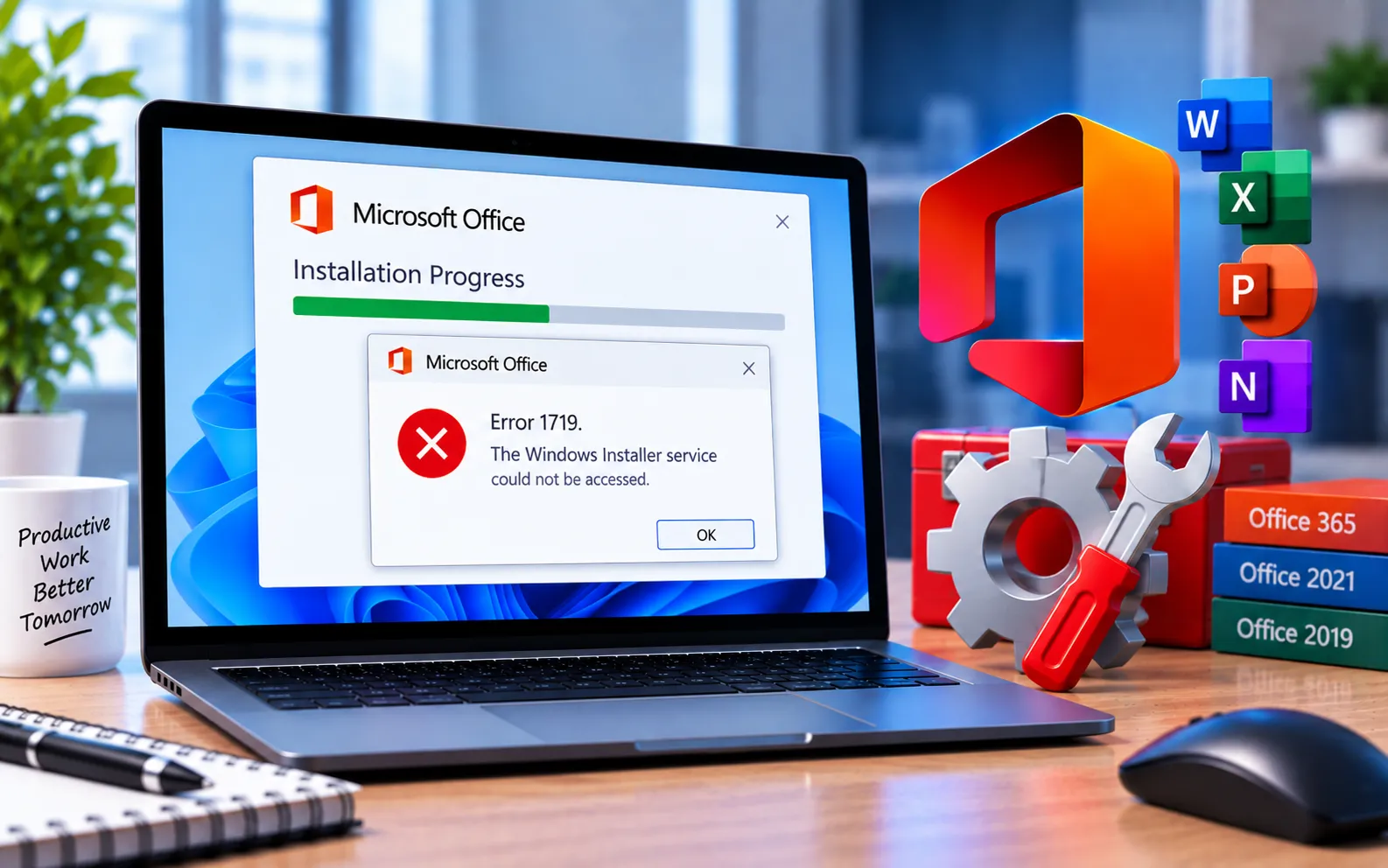
Error Code 1719 in Microsoft Office 2019, 2021, or 365 on Windows 10/11 occurs when internet connection issues, firewall or proxy settings, or leftover Office installation files prevent installation from completing.
This guide explains the steps to fix it.
How to Fix Error Code 1719 in Office 2019/2021/365
Work through these methods in order to resolve Error Code 1719.
Here’s how to fix it:
Temporarily disable Windows Security and antivirus
Open Windows Security, click “Virus & threat protection,” click “Manage settings,” and switch Real-time protection to Off. If you use a third-party antivirus (McAfee, Norton, AVG, etc.), open its settings, go to real-time protection, and turn it off, then also disable its firewall if it has one. Try the installation again, and remember to re-enable everything afterward.
Run SFC and DISM to fix corrupted files
Right-click the Start button and select Windows Terminal (Admin). Type sfc /scannow and wait for the scan to finish. If SFC finds an issue it can’t fully repair, follow up in the same window with DISM /Online /Cleanup-Image /RestoreHealth.
Clear leftover Office registry entries
Back up your registry before making changes. Press Win + R, type regedit, and press Enter. Navigate to HKEY_LOCAL_MACHINE\SOFTWARE\Microsoft\Office, delete the Office folder there, exit the registry editor, and restart your computer. Try installing Office again.
Use the Microsoft Support and Recovery Assistant
Download the Microsoft Support and Recovery Assistant from Microsoft’s official site, run the downloaded SetupProd_OffScrub.exe file, accept the terms, and let it complete its Office uninstall troubleshooting. Select the checkbox next to the Office product you want removed, and click Next to finish.
Reinstall Office
Go to office.com/myaccount and sign in with your registered email and password. Click “Install” under your Office product, save the installer if prompted, and run it once downloaded. Don’t disconnect from the internet or restart your computer while installation is running, and click Finish once it completes.
Reset Windows as a last resort
Back up your files first — resetting Windows will remove your files and settings during the process.
Windows 10: Start → Settings → System → Recovery → Reset PC, then choose your preferred options.
Windows 11: Start → Settings → System → Recovery → Reset PC, then choose your preferred options.
Still Not Resolved?
If you’re still having trouble after these steps, our experts are here to assist you — Chat with a specialist — and they’ll give you the best results to fully resolve Office Error Code 1719.
We are an independent technical support provider and are not affiliated with, endorsed by, or sponsored by Microsoft.
FAQ
What causes Office Error Code 1719?
It’s usually caused by internet connectivity issues, firewall or proxy settings, or leftover files from a previous Office installation.
Is it safe to edit the registry to fix this error?
It can help remove leftover entries causing the conflict, but back up the registry first — deleting the wrong key can cause other Office or system issues.
What does the Microsoft Support and Recovery Assistant do?
It fully removes Office from your computer, including leftover files a standard uninstall might miss, giving you a clean slate before reinstalling.
Should I disable antivirus before installing Office?
Yes, temporarily. Antivirus or firewall software can block parts of the installation process — disabling it during setup and re-enabling it afterward often resolves the issue.
Tags: Error Code 1719, KB63363909, Microsoft Office 365/2021/2019 Error Code 1719, Office 365/2021/2019, windows 11/10 Operating System
