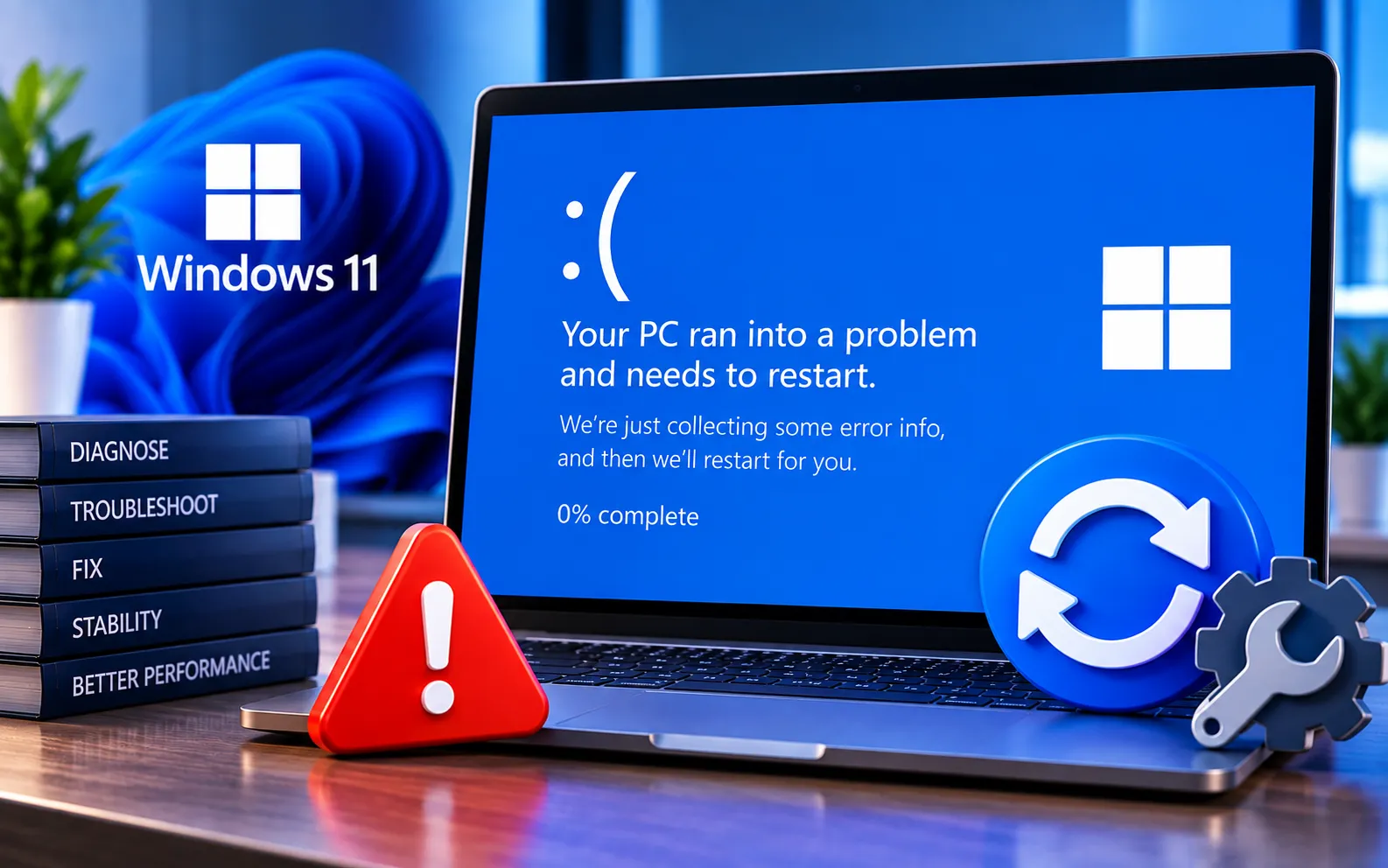
Encountering the “Your PC ran into a problem and needs to restart” error can be frustrating. This message, often paired with an unusual code or a blue screen, means Windows has hit a serious snag that’s stopping it from working correctly.
The message can be alarming, but it helps to understand what’s actually going on and how to fix it.
What’s This Error Message About?
This error is a catch-all sign that something has gone wrong deep in the system — it could be anything from software not getting along to hardware acting up. Windows uses this message to protect your device from further harm, and the restart is meant to reset everything and clear out any short-term problems.
Common Reasons Your PC Ran Into a Problem and Needs to Restart
Driver issues — old or broken drivers can make your system crash; outdated graphics drivers in particular tend to clash with other system processes.
Hardware failures — failing hardware components like RAM, hard drives, or motherboards can cause your system to crash. Excess heat or physical damage can also play a role.
Software conflicts — newly installed apps or system updates can sometimes conflict with software you already have, leading to system instability.
Corrupted system files — key system files can become damaged due to improper shutdowns, viruses, or other issues, making your system unstable.
Malware and viruses — malicious programs can interfere with how your computer works and cause unexpected crashes.
Here’s what to do when you see “Your PC Ran Into a Problem and Needs to Restart”:
Update your drivers
Make sure all your drivers are current. You can do this through Device Manager, or by checking the manufacturer’s website for the latest versions.
Check for hardware issues
Use hardware diagnostics to check for problems with your components. Many PCs have built-in diagnostic tools, or you can use trusted third-party software.
Perform a system scan
Use built-in tools like System File Checker (SFC) and the Deployment Imaging Service and Management Tool (DISM) to scan for and fix damaged system files. Run these from an elevated Command Prompt:
To run SFC: sfc /scannow
To run DISM: DISM /Online /Cleanup-Image /RestoreHealth
Remove recent updates or software
If the problem started right after installing a new update or program, try removing it to see if that resolves the crashes.
Check for malware
Run a full system scan with your antivirus program to rule out malware or viruses as the cause of the crash.
Check Event Viewer
Windows Event Viewer can provide more specific details about the error. Look for critical issues in the “System” and “Application” logs to narrow down the exact cause.
Still Not Resolved?
If you’re still unable to resolve the “Your PC Ran Into a Problem and Needs to Restart” error after trying all six steps, the cause may need a closer, device-specific look. Our experts are here to assist you — Chat with a specialist — for more technical support.
We are an independent technical support provider and are not affiliated with, endorsed by, or sponsored by Microsoft.
FAQ
What does “Your PC ran into a problem and needs to restart” mean?
It’s a catch-all error indicating Windows has hit a critical problem — the cause could be a driver conflict, hardware failure, software conflict, corrupted files, or malware.
Should I worry if I see this error only once?
Not necessarily. A single occurrence can be a temporary glitch. If it happens repeatedly, it’s worth working through the troubleshooting steps to identify the underlying cause.
Can a recent Windows update cause this error?
Yes. Newly installed updates or software can sometimes conflict with existing programs — removing a recently installed update or app is a good way to test this.
How can I find the exact cause of the crash?
Check Windows Event Viewer and look in the “System” and “Application” logs for critical errors around the time of the crash — these often point directly to the responsible driver or component.
Tags: Your PC Ran Into a Problem, Your PC Ran Into a Problem and Needs to Restart, Your PC Ran Into a Problem and Needs to Restart” Error
