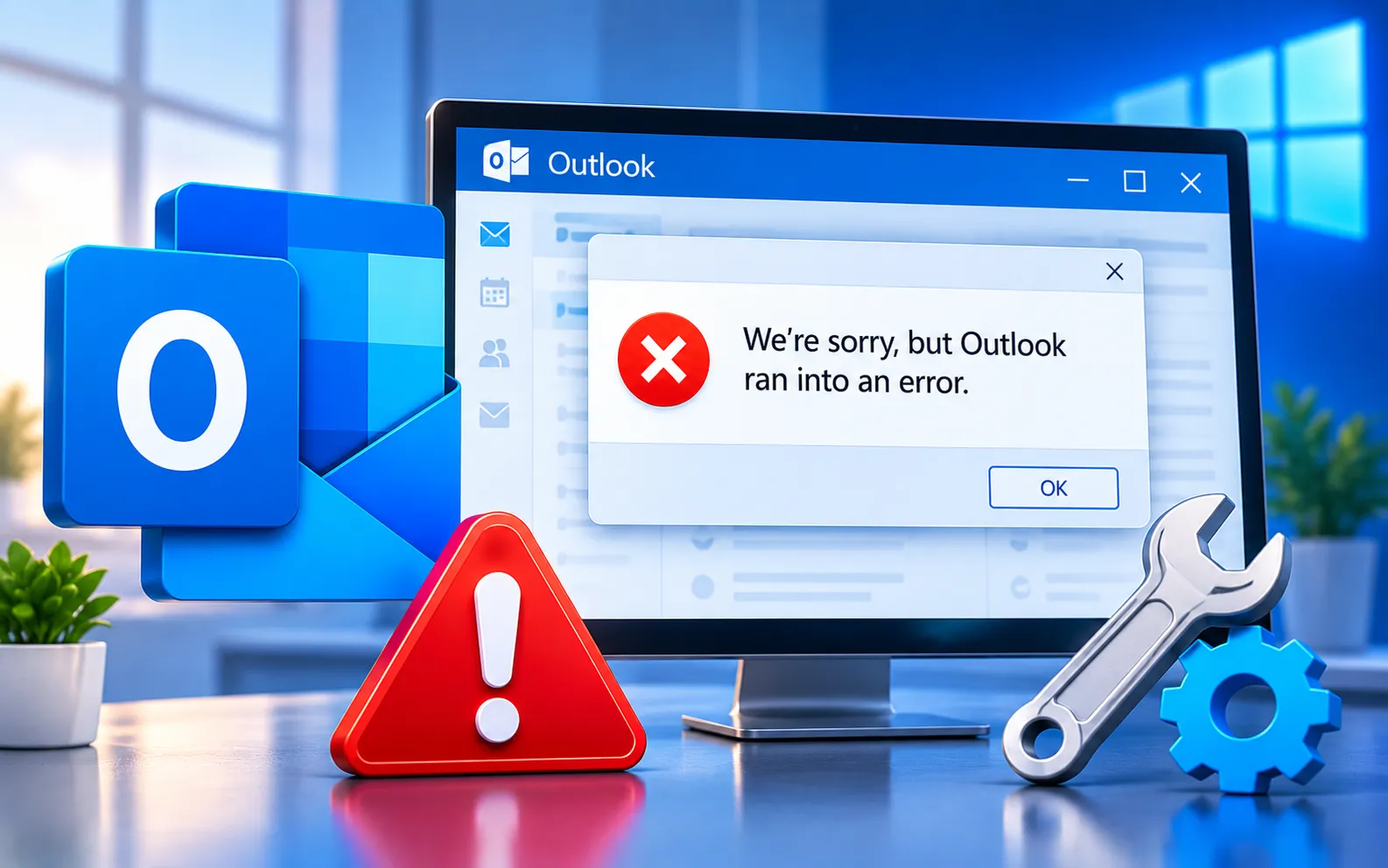
If you’ve encountered the error message “We’re sorry, but Outlook ran into an error,” don’t worry — you’re not alone. Outlook is a powerful email client, but like any software, it can run into issues.
This guide will help you troubleshoot and resolve this common error, getting you back to a seamless email experience.
What Causes “We’re Sorry, But Outlook Ran Into an Error”?
This message can be caused by various issues, such as corrupted profiles, conflicting add-ins, or problems with the Outlook data file. Restarting Outlook in Safe Mode, disabling add-ins, or repairing the Outlook data file are the most effective first steps. If the problem persists, checking event logs can help pinpoint the specific cause.
If Outlook still doesn’t start correctly after trying the steps below, see our guide on Cannot Start Microsoft Outlook for additional troubleshooting.
Here’s how to fix “We’re sorry, but Outlook ran into an error”:
1
Check your internet connection
Make sure your connection is stable — a weak or intermittent connection can disrupt Outlook’s functionality. Try accessing other websites to confirm your internet is working properly.
2
Restart Outlook
Close Outlook completely and reopen it. This refreshes the application and clears temporary glitches that may be causing the error.
3
Update Outlook
Make sure you’re using the latest version of Outlook, since developers regularly release updates that fix bugs and improve performance. Check for updates in the software settings and install any available. If you’re having trouble updating, see our guide on Microsoft Office update errors, and if the problem is related to activation, see our guide on Outlook unlicensed product issues.
4
Check Outlook in Safe Mode
Launch Outlook in Safe Mode to rule out add-ins as the cause. If Outlook runs fine in Safe Mode, an add-in is likely the culprit — disable or remove recently installed add-ins and restart Outlook normally.
5
Repair Outlook data files
Corrupted data files can cause this error. Use the built-in Inbox Repair Tool (scanpst.exe) to repair any damaged Outlook data files, following its on-screen instructions.
6
Clear the Outlook cache
Outlook stores temporary files to improve performance, but these can sometimes cause errors. Go to Outlook’s settings and find the option to clear the cache or temporary files.
7
Check firewall and antivirus settings
Your firewall or antivirus may be blocking Outlook’s internet access or causing a conflict. Review your security software settings and make sure Outlook is allowed to connect.
8
Create a new Outlook profile
A corrupted profile can cause this error. Create a new Outlook profile and configure it with your email account to test whether the issue is tied to the profile or the application itself.
9
Reinstall Outlook
If none of the above resolves the error, uninstall Outlook, download the latest version from the official website, and install it fresh.
10
Contact support
If the error persists, reach out to Microsoft Support with details about the issue, any error codes, and the steps you’ve already tried — they can offer guidance specific to your situation.
Still Not Resolved?
Encountering errors in Outlook can be frustrating, but working systematically through these steps resolves it in most cases. Our experts are here to assist you — Chat with a specialist — for more technical support.
We are an independent technical support provider and are not affiliated with, endorsed by, or sponsored by Microsoft.
FAQ
What causes “We’re sorry, but Outlook ran into an error”?
It’s commonly caused by a corrupted profile, a conflicting add-in, or an issue with the Outlook data file.
How do I check if an add-in is causing the error?
Launch Outlook in Safe Mode — if it runs without the error there, an add-in is likely the cause, and disabling recently installed ones will help identify which one.
What does scanpst.exe do?
It’s Outlook’s built-in Inbox Repair Tool, used to scan and repair corrupted Outlook data files
Tags: Outlook has run into an error, outlook has run into an error that is preventing it from working correctly, we are sorry but outlook has run into an error, we are sorry but outlook has run into an error that is preventing, we are sorry but outlook has run into an error that is preventing it from working correctly, we are sorry outlook run into an error, we're sorry but outlook has run into an error, we're sorry but outlook has run into an error that is preventing, we're sorry but outlook has run into an error that is preventing it from working correctly
