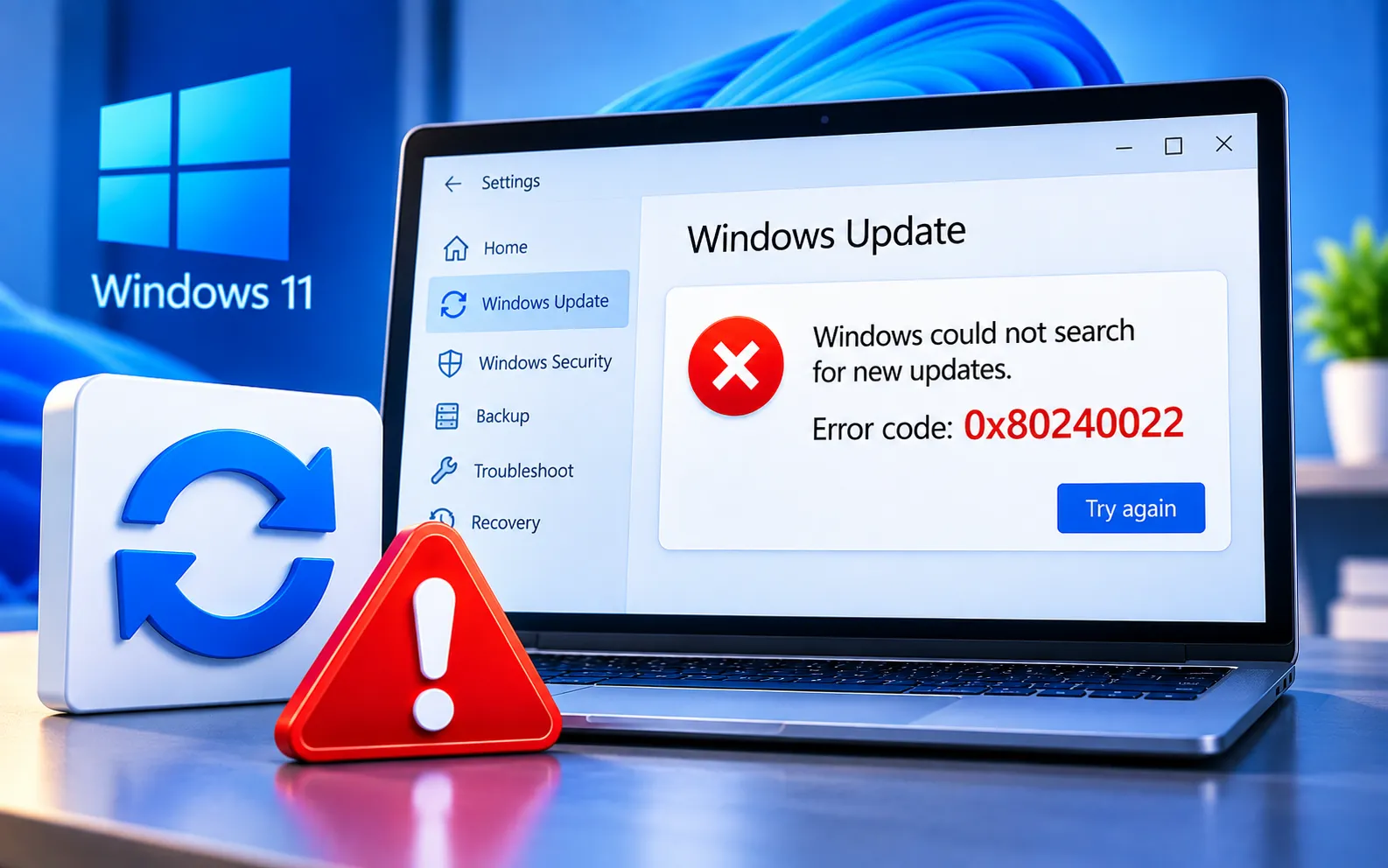
Windows users may encounter Windows Update Error Code 0x80240022 when Windows has difficulty downloading or installing updates.
This guide explains the common causes of the error and provides practical steps to troubleshoot and resolve it.
What Is Windows Error 0x80240022?
Error 0x80240022 is associated with Windows Update and occurs when the system has trouble downloading or installing updates. It may appear with a message like “WU_E_ALL_UPDATES_FAILED” or “WU_E_EULAS_DECLINED,” indicating the updates failed to install or that the End User License Agreements (EULAs) were declined.
Network issues — a poor or unstable internet connection can disrupt the update process, and firewall or antivirus settings may block Windows Update.
Corrupted system files — damaged or corrupted system files can interfere with the update process.
Software conflicts — third-party software or security applications can conflict with the update.
Insufficient disk space — a lack of free space on the system drive can prevent updates from installing.
Here’s how to fix Error 0x80240022:
Check your internet connection
Make sure you have a stable, reliable connection, and temporarily disable any VPN or proxy settings that might be interfering.
Adjust firewall and antivirus settings
Temporarily disable your firewall and antivirus programs to make sure Windows Update isn’t being blocked, then try updating again.
Run the Windows Update Troubleshooter
Use the built-in Windows Update Troubleshooter to identify and fix common issues. Right-click the Start button (or press Win + X), select Settings → Update & Security → Troubleshoot, choose the relevant troubleshooter (e.g., “Troubleshoot Windows Update”), click “Run the troubleshooter,” and follow the on-screen instructions.
Clear the Windows Update cache
Open Command Prompt as administrator and run each command below one at a time:
net stop wuauserv
net stop cryptSvc
net stop bits
net stop msiserver
ren C:\Windows\SoftwareDistribution SoftwareDistribution.old
ren C:\Windows\System32\catroot2 catroot2.old
net start wuauserv
net start cryptSvc
net start bits
net start msiserver
Check disk space
Make sure there’s sufficient free space on your system drive — Windows needs enough room to download and install updates successfully.
Run System File Checker
Open Command Prompt as administrator and run sfc /scannow to scan for and repair corrupted system files that could be interfering with the update.
Install updates manually
Download and install the specific update manually from the official Microsoft Update Catalog if the automatic process keeps failing.
Still Not Resolved?
Following these steps resolves Windows Error 0x80240022 in most cases and keeps your system up to date. If the issue persists, consider seeking assistance from Microsoft support or community forums for solutions tailored to your specific situation. Our experts are here to assist you — Chat with a specialist — for more technical support.
We are an independent technical support provider and are not affiliated with, endorsed by, or sponsored by Microsoft.
FAQ
What does “WU_E_ALL_UPDATES_FAILED” mean?
It’s one of the messages tied to Error 0x80240022, indicating that all attempted updates failed to install — usually due to a connectivity, cache, or system file issue.
What causes Windows Error 0x80240022?
It’s typically caused by network issues, corrupted system files, third-party software conflicts, or insufficient disk space.
Will clearing the Windows Update cache delete my files?
No. The commands only rename the update cache folders — your personal files, documents, and installed applications are not affected.
Can a VPN cause this update error?
Yes. VPN or proxy settings can interfere with the connection to Microsoft’s update servers — temporarily disabling them can help confirm this as the cause.
Tags: 0x80240022, 0x80240022 error, 0x80240022 windows update, 80240022, error 0x80240022, error code = 0x80240022, Windows Error Code 0x80240022, windows update 0x80240022, Windows Update Error Code 0x80240022
